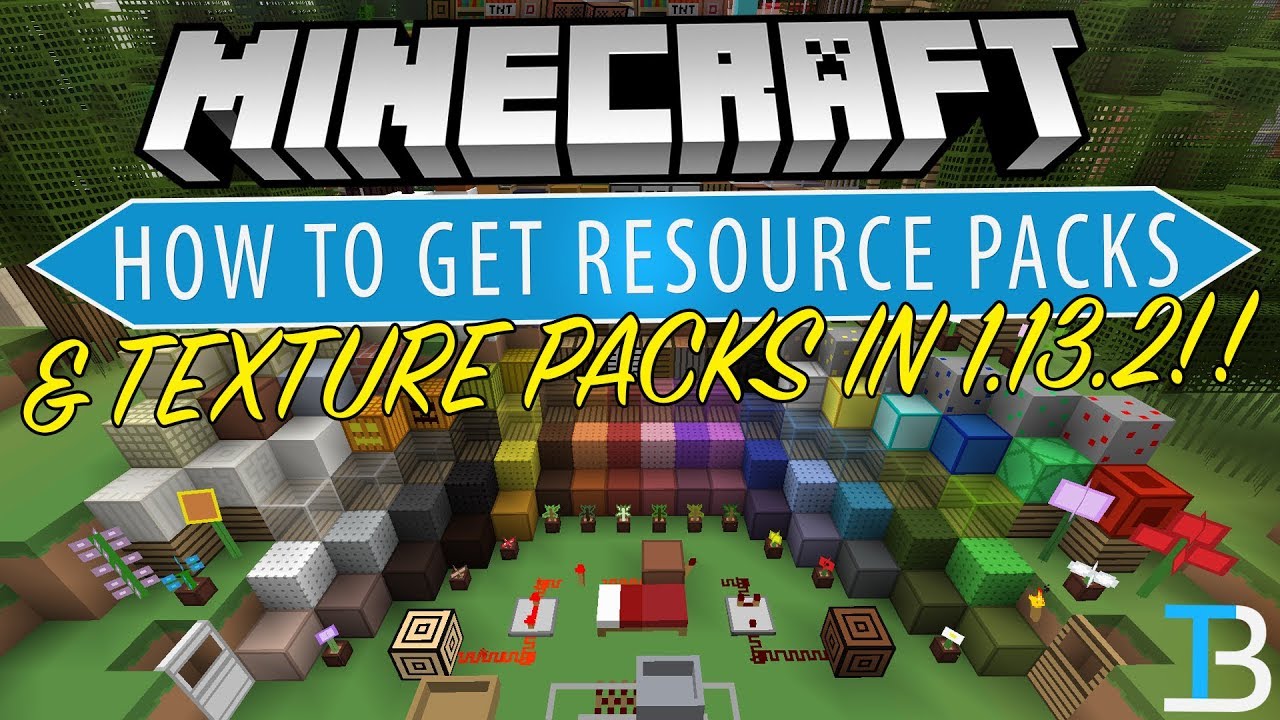
This video is our step-by-step guide on how to download and install Resource Packs and Texture Packs in Minecraft 1.13.2. We cover every step of getting texture packs in 1.13.2 from downloading your resource pack to getting it installed in 1.13.2, we cover every step of the process in order to make sure that can have the best Minecraft experience possible with your resource packs!
Get A 24 Hour DDOS Protected 1.13 Minecraft Server For Just $1/Month!
Download Resource/Texture Packs:
——————————————————–
★ Minecraft Server IP: Play.BreakdownCraft.com ► Store:
★ Join BreakdownCraft on Discord!:
——————————————————–
► Subscribe!:
——————————————————–
Start A 1.13.2 Server!:
Get Custom Maps in 1.13.2!:
——————————————————–
**FOLLOW US ON SOCIAL MEDIA**
Our Website:
Facebook:
Twitter:
Email: [email protected]
——————————————————–
★ Recommended Gear
Get your C920 Webcam:
Get your Minecraft Server:
Get your Blue Snowball:
——————————————————–
Music From EpidemicSound:
About this video: In this video, we go over everything that you need to know about getting a resource pack or texture in Minecraft 1.13.2. We show you the 15 best resource packs in Minecraft 1.13.2, and show you how to download 1.13.2 texture packs and how to get those resource packs installed in Minecraft 1.13.2. We really do go over everything here, so let’s get on into it.
The first thing that you need to do when getting a resource pack is download one. Luckily, we have a complete list of 1.13.2 compatible resource packs linked in the description above. I download and install two resource packs in this video. The first is Sphax PureBDCraft for 1.13.2, and the second is Faithful 32×32 for 1.13.2. These are awesome resource packs and I show how to download them both in this video.
After you have your texture packs downloaded, installing them is easy. Just open up Minecraft 1.13.2, click on ‘Options’, and then, click on ‘resource packs’. From here, you will just click the ‘open resource packs folder’ button in the bottom left. This will open a folder for you. Just drag and drop the resource packs in this folder. Click ‘done’ in the bottom left of Minecraft, click the ‘resource packs’ button again, enable your resource pack, click done, and you have now installed a resource pack in Minecraft 1.13.2! Congratulations!
And with that being said, I hope you enjoyed this video, and I hope it helped you out. If it did, please give this video a thumbs up and be sure to subscribe to the channel if you haven’t already for more awesome Minecraft 1.13.2 videos!
Note: Some of the above links are affiliate links. I may receive a commission at no additional cost to you if you go to these sites and make a purchase.
This article was gathered automatically by our news bot. We help YouTubers by driving traffic to them for free. The featured image in this article is the thumbnail of the embedded video. Thank you for visiting the Southeast Sports Network and sesnsports.com. For more sports, news, and entertainment, follow us on Twitter @SESNsports or like our page on Facebook.